Configure Price of Auto Recurring Fees Based on Age Categories/Seasons
Stay allows users to configure the price of auto recurring fees based on the age categories configured at the property or for a specific date range (season). This enhancement is applicable for the following auto recurring fee rules configured at the property:
-
Default Fees
-
Single Condition Rules
-
Multi Condition Rules
Based on the age categories of the guests associated with a reservation and the duration of stay, the auto recurring fees is calculated, and the total amount is posted to the reservation folio.
For example, when the price of an auto recurring fee, Amenity fee, is configured as $50.00 for adults, $40.00 for children and when there are 2 adults and 1 child associated with a reservation, the total auto recurring fee is calculated as follows: (2 * $50.00) + ($40.00) = $140.00.
Feature Setting
The following feature settings must be enabled to use this feature:
-
Age Categories
-
Enhanced Auto Recurring Fee
When the feature settings are enabled, the Pricing tab is displayed next to the Frequency tab in the following pop-up screens:
-
Guest Accounting ➜ Auto Recurring Fees ➜ Default Fees ➜ Add/Edit
-
Guest Accounting ➜ Auto Recurring Fees ➜ Single Condition Rules ➜ Add/Edit
-
Guest Accounting ➜ Auto Recurring Fees ➜ Multi Condition Rules ➜ Add/Edit
The Pricing tab displays the following sections:
-
Age Based Rates
-
Season
Users can configure prices based on age categories and seasons for individual transaction, inventory items and Add-Ons selected for the auto recurring fee rules.
Configure Age Based Rates
To configure the price of an item based on the age categories available at the property, users must click the Add hyperlink in the Age Based Rates section. When clicked, the following fields are displayed:
|
Field |
Description |
|---|---|
|
Start Date |
The start date from which the configured price must be applied. Users can select a date that is greater than or equal to the start date configured for the item in the Start field in the Frequency tab. |
|
End Date |
The end date up to which the configured price must be applied. Users can select a date that is greater than or equal to the start date and lesser than or equal to the end date configured in the End field in the Frequency tab. |
|
Age category 1 (for example, Adults) |
The price of the item for the age category. |
|
Age Category 2 (for example, Children) |
The price of the item for the age category. |
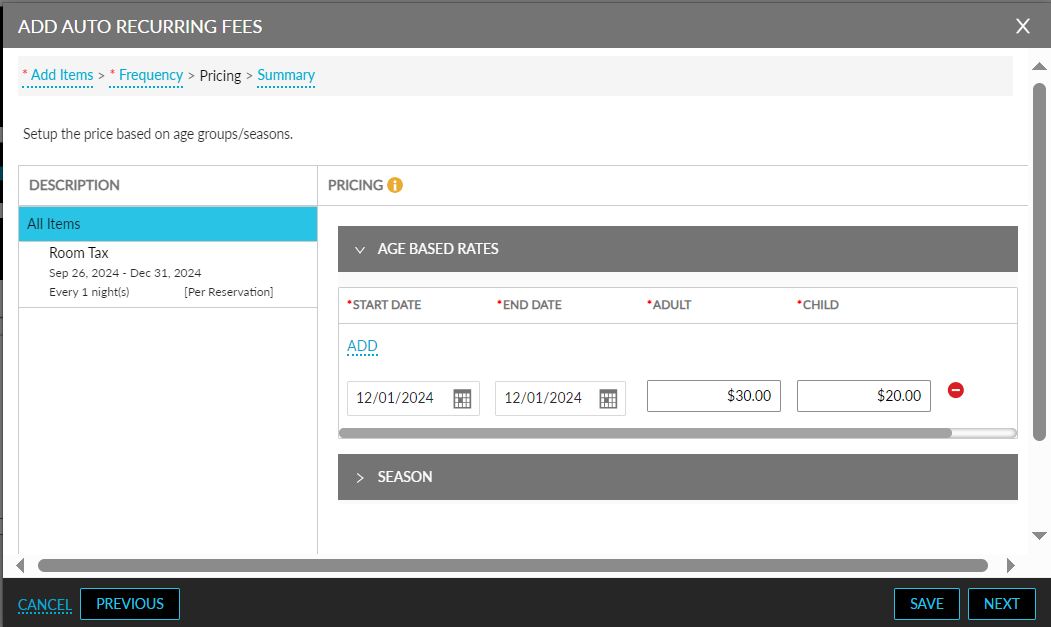
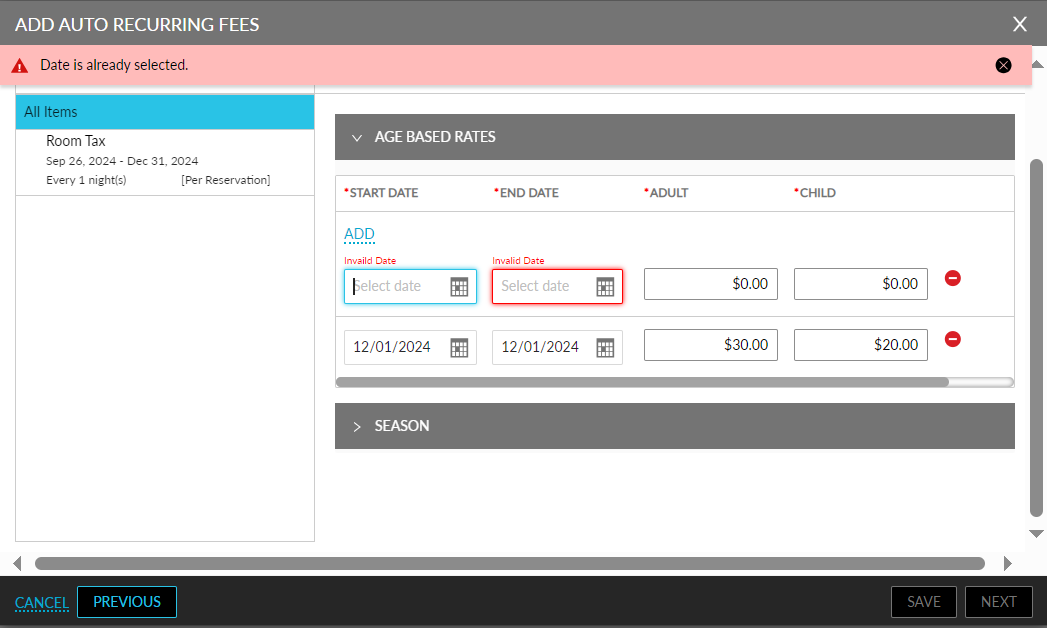
To configure additional rates, users must click the Add hyperlink. When configuring additional rates, the previously selected date range cannot be selected again. In this case, the date pickers will be highlighted in red, and the following message will be displayed as a banner: Date is already selected.
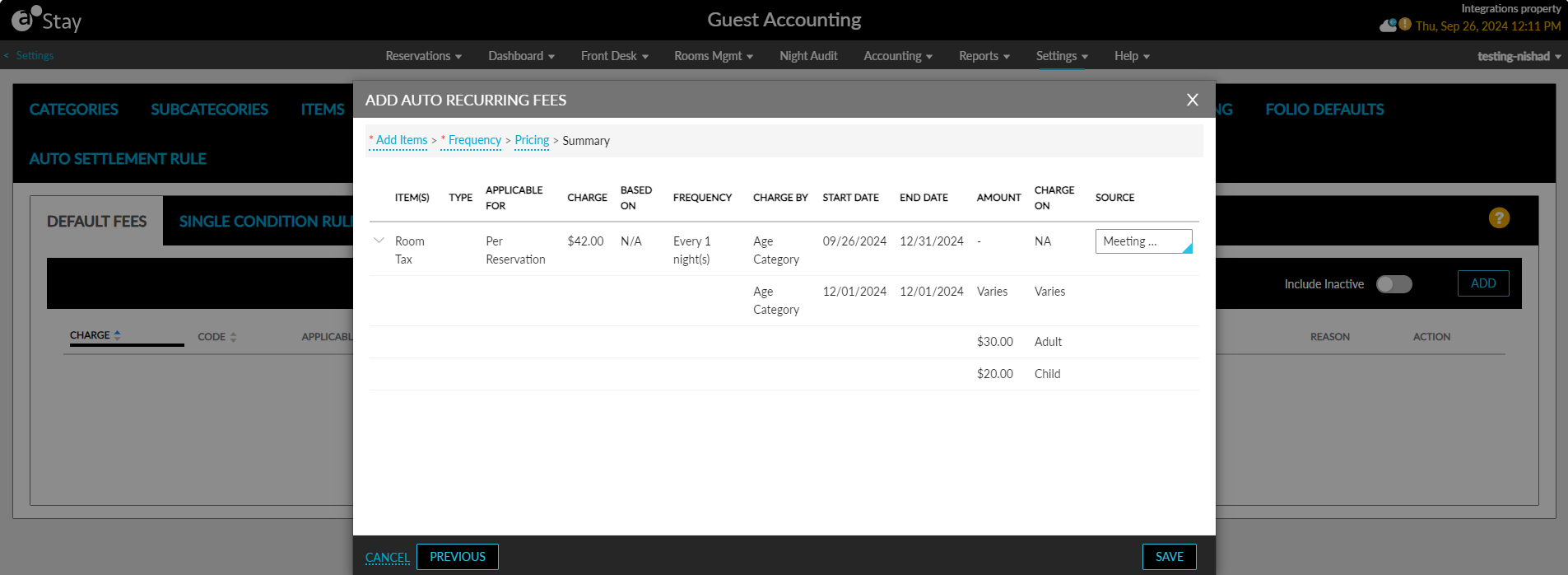
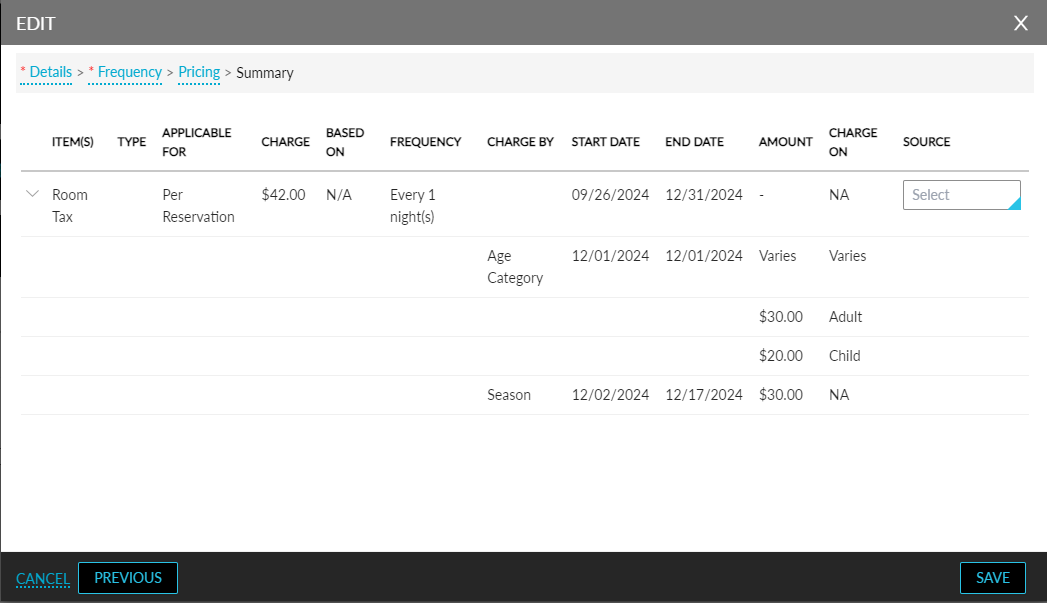
Users can delete a configured rate using the remove icon (-). When users navigate to the Summary tab, the following additional columns display the prices configured for the items.
|
Field |
Description |
|---|---|
|
Charge By |
The charge by option selected to configure the price of the item, that is, Age Category. |
|
Start Date |
The start date configured for the price. |
|
End Date |
The end date configured for the price. |
|
Amount |
The amount configured for the Charge By option selected. Displays a hyphen (-) when the accordion provided for the item is collapsed. When expanded, displays the text Varies when configured with age-based rates. The price configured for each age group is displayed below the text. |
|
Charge On |
Displays NA when the accordion is collapsed. When expanded, displays the text Varies when configured with age-based rates. The age category for each price is displayed below the text. |
When users click Save, they are prompted to confirm if the configured prices must be applied to in-house reservations or existing future reservations.
Price Based on Seasons
To configure rates based on seasons, users must click Add in the Season section of the mentioned screens. When clicked, the following fields are displayed:
|
Field |
Description |
|---|---|
|
Start Date |
The start date from which the configured price must be applied. Users can select a date that is greater than or equal to the start date configured for the item in the Start field in the Frequency tab. |
|
End Date |
The end date up to which the configured price must be applied. Users can select a date that is greater than or equal to the start date and lesser than or equal to the end date configured in the End field in the Frequency tab. |
|
Amount |
The price for the selected date range. |
Users cannot select dates that were previously selected in the Age Based Rates section. To configure additional prices, users must click Add. When users click Next and navigate to the Summary tab, the following details are displayed in the new columns added to this tab:
|
Field |
Description |
|---|---|
|
Charge By |
The charge by option selected to configure the price of the item, that is, Season. |
|
Start Date |
The start date configured for the price. |
|
End Date |
The end date configured for the price. |
|
Amount |
The amount configured for the Charge By option selected. Displays a hyphen (-) when the accordion provided for the item is collapsed. When expanded, the amount configured for the season is displayed. |
|
Charge On |
Displays NA when the accordion is collapsed or expanded. |
Auto Recurring Fees for Reservations
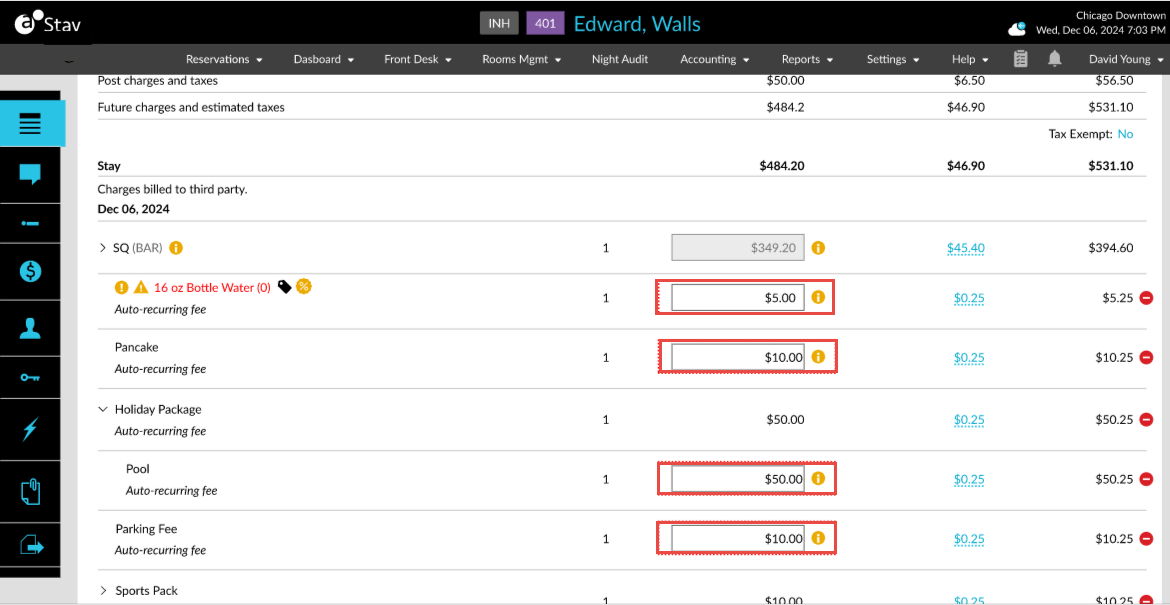
When the auto recurring fees with rates configured based on age groups are applied to reservations, an information icon is displayed next to the price of the item in the Estimated Charges section of the reservation.
When hovered upon, the price configured for each age group is displayed. When the price of the auto recurring fee is overridden, the information icon will no longer be displayed.